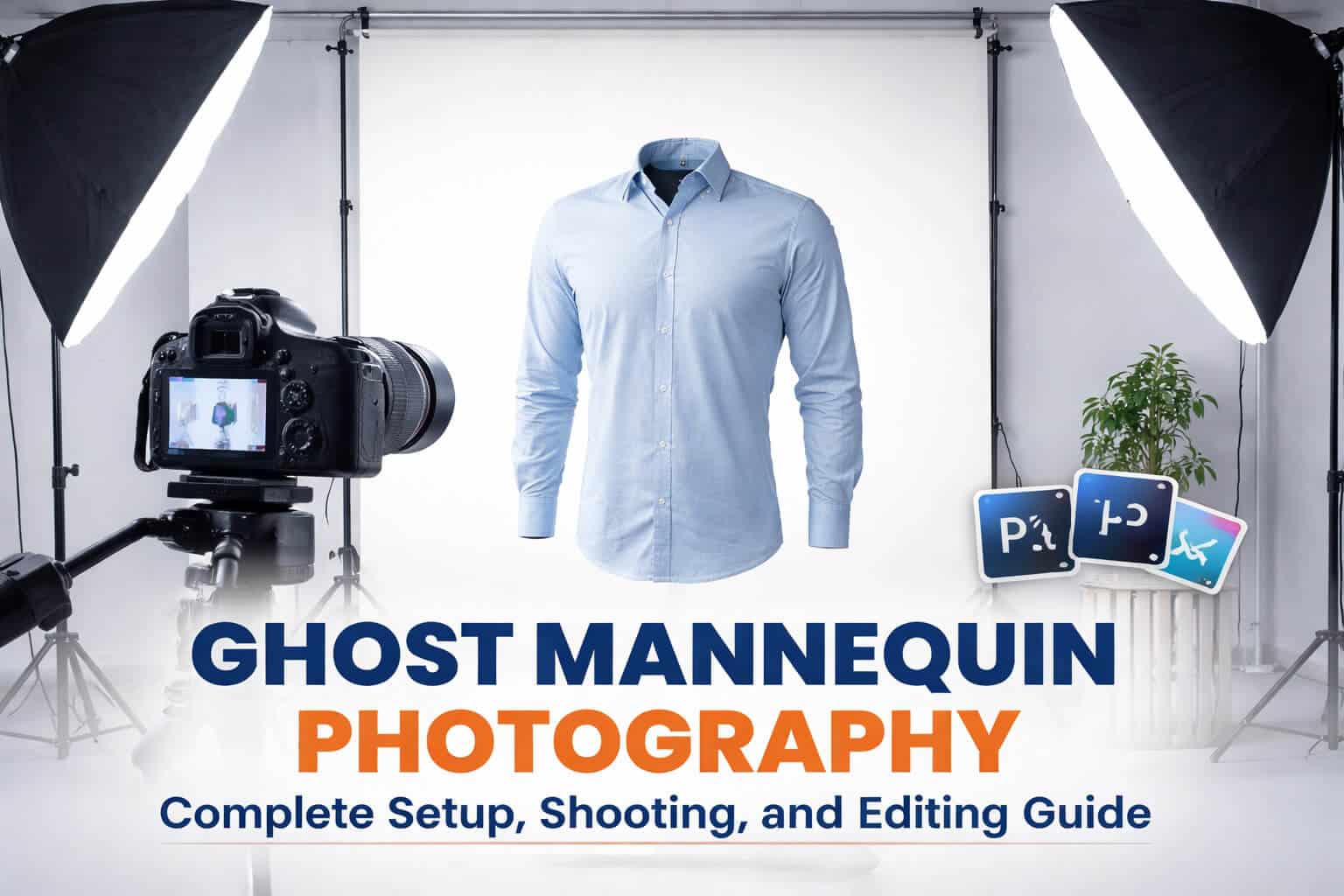
Online shoppers can’t touch or try on clothes before buying. That’s why ghost mannequin photography has become the backbone of successful fashion ecommerce—it bridges the gap between physical retail and digital shopping by showing exactly how garments fit, drape, and hold their shape. This invisible mannequin technique creates stunning 3D apparel photography that displays clothing as if worn by an invisible body, giving customers the dimensional understanding they need to click “buy with confidence.”
If you’re launching an online clothing store or improving your existing product catalog, this complete guide covers everything from ghost mannequin photography setup to the final editing workflow, helping you create professional apparel product images that drive conversions.
Introduction to Ghost Mannequin Photography
What Is Ghost Mannequin Photography?
Ghost mannequin photography is a specialized product photography technique where clothing is shot on a mannequin, then edited to remove the mannequin entirely, creating a hollow, three-dimensional effect. The result shows garments floating in space while maintaining their natural shape, structure, and fit.
The ghost mannequin effect works by capturing multiple images: the garment’s exterior on the mannequin and separate shots of interior details like collar labels, inner stitching, and lining. These images are combined in post-production using layer masking and image compositing to create seamless ghost mannequin images.
How It Creates a Realistic 3D “Invisible Body” Effect
The magic happens through careful planning and execution. By photographing the garment’s exterior while it’s styled on a mannequin, you capture how the fabric naturally drapes and holds its shape. Separately shooting interior details with the mannequin’s neck or torso removed allows you to fill the hollow areas that appear after mannequin removal.
Adobe Photoshop brings these elements together. Precise clipping paths isolate the garment, layer masks blend interior and exterior shots, and shadow creation adds depth. The finished ghost mannequin images present a realistic 3D representation that helps customers visualize the product on their own body.
Essential Equipment for Ghost Mannequin Photography
Camera Requirements
DSLR vs Mirrorless Cameras
Both DSLR cameras and mirrorless cameras deliver professional results for ghost mannequin apparel photography. Modern mirrorless systems offer advantages like lighter weight, silent shooting, and superior autofocus, but DSLRs remain proven workhorses with extensive lens options and longer battery life.
What matters most is manual control capability. Your camera must allow independent adjustment of ISO, aperture, and shutter speed to maintain consistency across shots—the foundation of the successful ghost mannequin technique.
Minimum Resolution and Why It Matters
Shoot with at least 20MP resolution. Higher megapixel counts provide two critical benefits: detail preservation for fabric texture and printing flexibility. When customers zoom into product images on e-commerce platforms, they examine stitching, weave patterns, and construction quality. Low-resolution images appear soft or pixelated under scrutiny, undermining customer confidence.
Large print catalogs also demand high resolution. A 20MP image provides adequate quality for prints up to 16×20 inches at 300dpi—standard for professional clothing catalog photography.
Recommended Camera Models
Professional options include:
- Canon EOS R6 Mark II: 24MP mirrorless with excellent color science and reliable performance ($2,299)
- Sony A7R IVA: 61MP resolution ideal for extreme detail and large format output ($3,498)
- Nikon D850: 45MP DSLR known for exceptional dynamic range and color accuracy ($2,997)
- Canon EOS 90D: Budget-friendly 32MP DSLR for businesses starting ($1,199)
Any of these cameras will serve ghost mannequin photography needs well. Choose based on your ecosystem preference and budget rather than chasing specifications.
Best Lens for Ghost Mannequin Shots
Why 50mm–85mm Lenses Are Ideal
Prime lenses in the 50mm to 85mm range produce natural perspective without distortion. A 50mm lens on a full-frame camera provides a field of view close to human vision, creating an authentic garment representation. An 85mm lens offers slightly tighter framing, perfect for detail shots and smaller items.
These focal lengths also provide working distance. You’ll position your camera 6-10 feet from the mannequin, allowing space for lighting equipment without cramped quarters. This distance, combined with the right focal length, prevents perspective distortion that makes garments look wider at the bottom or compressed unnaturally.
Avoiding Distortion in Apparel Photography
Wide-angle lenses (24mm-35mm) introduce barrel distortion—straight lines curve outward, and proportions skew. A dress photographed with a 24mm lens appears wider at the hem than reality, creating inaccurate product representations that lead to customer disappointment and returns.
Telephoto lenses beyond 100mm compress perspective, but require so much distance from the subject that they’re impractical for most studio setups. Stick with the 50mm-85mm sweet spot for distortion-free fashion product photography.
When to Use 85mm for Detail Shots
Switch to an 85mm lens for close-up photography of specific garment features: intricate embroidery, button details, fabric weave, or construction elements. The longer focal length provides pleasing compression and beautiful background blur (bokeh) that isolates detail elements, though you’ll typically use clean white backgrounds for product listing images anyway.
Tripod & Stability
Why a Tripod Is Non-Negotiable
Handheld shooting introduces subtle variations in camera height, angle, and framing between shots. When you’re layering multiple images in Photoshop—exterior front, exterior back, and interior details—even minor alignment differences create hours of extra editing work.
A sturdy tripod locks your camera position, ensuring identical framing across all shots. This consistency is the difference between 5-minute edits and 30-minute struggles to align mismatched images.
Tripods also allow slower shutter speeds without camera shake. With proper lighting, you’ll typically shoot around 1/125 second, but tripod stability gives flexibility to use 1/60 or 1/30 second if needed for exposure adjustments.
Maintaining Consistent Height and Framing
Set your tripod height based on the garment type. Position the camera at chest level for tops, jackets, and dresses. For pants and skirts, drop to hip level. This creates natural viewing angles that customers expect when evaluating clothing.
Lock all tripod adjustments—leg height, center column, and head position. Any accidental bumps or changes between shots compromise the consistency required for the seamless ghost mannequin editing process.
Floor Marking Technique for Repeatable Shots
Professional studios use colored tape to mark exact tripod leg positions on the floor. Mark mannequin placement, too. These simple marks transform your ghost mannequin photography setup from guesswork into a repeatable system.
When shooting multiple products in one session, you’ll remove and replace the mannequin dozens of times. Floor marks ensure every garment occupies the same position in the frame, maintaining catalog consistency and dramatically reducing editing time.
Mannequin Selection & Studio Setup
Choosing the Right Mannequin
Modular Mannequin Benefits
A modular mannequin with removable components is essential for the professional ghost mannequin technique. Unlike standard display mannequins, modular versions allow you to detach the neck, torso sections, and arms as needed.
Why does this matter? After photographing the garment’s exterior, you need to capture interior details—the neck label, collar construction, or inner lining. With a standard mannequin, these areas remain hidden. A detachable mannequin lets you remove the neck section, style the garment open, and photograph those critical interior elements that complete the invisible ghost mannequin effect.
Detachable Neck, Arms, and Chest Explained
Look for mannequins with three key removable sections:
Detachable Neck: Removable to photograph shirt collars, dress necklines, and garment labels from inside. This component detaches quickly, usually with a twist-lock mechanism.
Removable Arms: Essential for jackets, coats, and long-sleeve items. Photograph sleeves with arms attached for natural drape, then remove to capture armhole construction and lining details.
Separable Torso: Some advanced mannequins split at the waist. This helps photograph two-piece outfits separately or capture interior waistband details on pants and skirts.
Quality modular mannequins cost $200-600 but last for thousands of shoots. Budget options around $150 exist, but often have poor joint mechanisms that become loose over time.
Best Mannequin Color and Finish
Choose white or light grey matte finish mannequins. Colored mannequins cast color onto light-colored garments, creating editing headaches when you try to achieve accurate color reproduction. A red mannequin photographed through white fabric creates a pink tint that requires extensive color correction.
Glossy mannequins create reflections and hot spots from your softbox lighting. These reflections show through thin fabrics and appear as bright patches that are difficult to remove in post-production. Matte finishes diffuse light evenly, eliminating this problem.
Fit, Sizing, and Styling Tools
Matching Mannequin Size to Target Customers
Purchase mannequins that reflect your customer demographics. If you sell women’s clothing sized 4-8, choose a size 6 mannequin. Menswear targeting athletic builds requires a mannequin with appropriate shoulder width and chest dimensions.
Proper sizing ensures garments fit naturally on the mannequin without excessive pinning or unrealistic stretching. When clothing hangs authentically, customers get accurate expectations about fit and drape, reducing the product return problem that plagues online fashion retailers.
Consider keeping multiple mannequin sizes if your catalog spans diverse size ranges. The investment pays off through more accurate product representation across your entire line.
Using Clips, Pins, and Tape for Perfect Fit
Even well-sized mannequins rarely fit garments perfectly out of the package. Professional ghost mannequin clothing photography requires styling tools:
Dressmaker Pins: Pin excess fabric at the back seams to create a tailored front appearance. Place pins along the spine where they won’t show in front or side shots. You’ll photograph the back separately and can remove pins visible in that shot.
Binder Clips: Secure sleeves, hem edges, or loose fabric areas. Small clips painted white or grey blend with mannequin colors and minimize editing work.
Clear Tape: Use small pieces of transparent tape inside garments to hold collars at specific angles, secure buttons, or maintain fabric positioning.
The goal is natural appearance, not perfection. Over-pinning creates unnatural tightness that misrepresents the actual garment fit.
Avoiding Asymmetry and Fabric Sagging
Check garment symmetry from multiple angles before shooting. Shoulders should sit level, collars should be centered, and front panels should hang evenly. Asymmetry appears unprofessional and damages customer trust.
Fabric sagging occurs when garments are too large for the mannequin or are improperly supported. Strategic pinning at stress points—shoulders, waist, hips—prevents sagging while maintaining natural drape. Think about how gravity affects fabric and support those areas appropriately.
Background Setup
White vs Light Grey Seamless Backdrops
White seamless paper or vinyl provides the cleanest background for e-commerce apparel photography. Most online platforms prefer pure white backgrounds (RGB 255, 255, 255) as they load faster and present products uniformly.
Light grey backgrounds work well for white or very light-colored garments where you need slight contrast for edge definition. However, grey requires additional editing time to convert to pure white if your marketplace requires it.
Seamless paper comes in rolls (typically 107 inches wide) that hang from background stands. Paper is affordable ($30-50 per roll) but tears easily and gets dirty. Vinyl costs more ($150-300) but lasts indefinitely with proper care.
Why Clean Backgrounds Reduce Editing Time
Clean, wrinkle-free backgrounds simplify background removal during the ghost mannequin Photoshop editing phase. Shadows, creases, or debris in the background require meticulous clipping path work or additional masking.
Replace paper backgrounds after they show wear. The cost savings from faster editing far exceed new paper expenses. Professional studios often replace seamless paper every 20-30 shoots to maintain editing efficiency.
Distance Between Mannequin and Background
Position your mannequin 3-4 feet from the backdrop. This separation prevents shadows from the mannequin appearing on the background, giving you cleaner images with uniform white backgrounds.
A greater distance also provides depth for lighting placement. You can position lights between the mannequin and background to illuminate the backdrop separately, further reducing shadow issues.
Lighting Setup for Ghost Mannequin Photography
Primary Lighting Configuration
Two Softboxes at 45° Angles (Standard Setup)
The foundation of a professional ghost mannequin lighting setup uses two identical lights positioned at 45-degree angles from the mannequin’s front. This configuration creates soft, even illumination that wraps around the garment without harsh shadows.
Position each light at mannequin height (chest level for tops, hip level for bottoms) to achieve frontal lighting that reveals fabric texture and construction details clearly. The 45-degree placement from the center adds subtle dimensionality that helps customers understand the garment’s depth and shape.
Both lights should be equidistant from the mannequin—typically 5-6 feet—to ensure balanced brightness. Uneven distance creates one-sided, brighter results that look unprofessional and complicate editing.
LED Panels vs Softboxes
Both softbox lighting and LED panel lights deliver quality results with different characteristics:
Softboxes provide beautifully diffused light ideal for fabric photography. They’re affordable ($150-300 per unit with strobe head) and widely available. Continuous output makes exposure adjustment easy.
LED Panels offer adjustable color temperature (critical for accurate color reproduction) and consume less power. Modern high-CRI LEDs ($300-800 per panel) render colors accurately, but cheaper units produce color casts that ruin e-commerce apparel photography.
Many professionals prefer softboxes with continuous LED bulbs, combining the diffusion benefits of softboxes with LED advantages. This hybrid approach costs $200-400 per light but offers best-in-class results.
Light Height and Distance from Mannequin
Mount lights at the same height as your garment’s midsection. For tops and dresses, that’s typically 4-5 feet high. For pants, 3-4 feet works better. This positioning ensures the brightest, most even light hits the garment’s main visible area.
Distance affects light quality and exposure. Closer lights (3-4 feet) create softer shadows and require lower power settings. Farther lights (6-8 feet) produce slightly harder light with more distinct shadows but offer wider coverage for full-length garments like maxi dresses or coats.
Test your specific setup and lock in distances that work. Consistency matters more than perfect measurements—your goal is identical lighting for every shot in your catalog.
Shadow Control & Fabric Texture
Using Reflectors to Fill Shadows
Even with two-light setups, shadows appear in areas where light doesn’t reach directly—under collars, in sleeve areas, or along side seams. White foam boards or collapsible reflectors positioned opposite your main lights bounce illumination into these shadow zones.
Place a large white foam board (32×40 inches or larger) on the side opposite your secondary light source. This free or low-cost tool ($10-20) dramatically improves lighting evenness without buying additional light fixtures.
Highlighting Fabric Weave Without Glare
Fabric texture sells quality. Customers want to see the weave pattern in linen, the pile in velvet, or the knit structure in sweaters. Proper lighting reveals these details without creating glare or hot spots.
Diffused lighting from softboxes naturally brings out texture without harshness. Avoid direct bare bulbs or flash heads without diffusion—they create glare on smooth fabrics and blow out highlights, losing detail in the brightest areas.
For particularly challenging fabrics, adjust the light distance or power rather than the angle. Moving lights farther away creates broader, more even coverage that minimizes problematic reflections.
Handling Shiny or Dark Fabrics
Shiny materials like satin, silk, or sequined fabrics reflect light directly, creating hot spots. Reduce light power and increase diffusion. Some photographers add additional diffusion layers over softboxes or use larger light modifiers that spread illumination across broader areas.
Dark fabrics—black, navy, deep burgundy—absorb light, requiring higher power output or longer exposure times. Monitor your histogram to ensure you’re capturing adequate detail in dark areas without underexposing. Slight overexposure is better than muddy shadows that lose fabric detail.
Lighting Consistency Tips (Often Missed)
Keeping Power Levels Identical for All Shots
Record your light power settings before starting. Most studio strobes and LED panels have power controls marked in stops or percentages. Write down exact settings: “Key light: 50%, Fill light: 40%, Background: 30%.”
Never adjust power between exterior shots and interior detail shots. Even minor changes create brightness or color temperature shifts that become obvious when layering images during the ghost mannequin editing process. These mismatches require time-consuming correction that could have been avoided with consistent power settings.
Avoiding Color Shifts Between Interior and Exterior Images
Color temperature shifts are the hidden enemy of efficient editing. They occur when:
- Lights warm up over time (first shot vs last shot)
- You adjust one light but not the other
- Daylight from windows mixes with artificial light
Run your lights for 5-10 minutes before starting to shoot. This warm-up period stabilizes color temperature. Block window light with blackout curtains—even subtle daylight contamination creates color inconsistency.
Why Lighting Consistency Matters for Post-Production
In Adobe Photoshop, you’ll layer your exterior garment shot with interior detail shots, blending them seamlessly at the neck, collar, or armholes. When these images have different brightness or color characteristics, the seam becomes visible—a dead giveaway of amateur ghost mannequin images.
Consistent lighting means edges blend naturally with minimal adjustment. You’ll spend 30 seconds on assembly instead of 10 minutes trying to match colors and tones between mismatched layers.
Camera Settings for Perfect Ghost Mannequin Images
Manual Camera Settings
Shooting in Manual Mode
Automatic camera modes adjust exposure between shots based on scene brightness. When your mannequin wears a white shirt, the camera darkens the exposure. Switch to a black jacket, and the camera brightens everything. These variations create inconsistent product images that look unprofessional in your catalog.
Manual mode locks exposure settings. Every image receives identical exposure regardless of garment color, ensuring consistency across your entire clothing catalog photography.
ISO: 100–200 for Clean Images
Low ISO values produce images with minimal digital noise or grain. Set your ISO to 100 (the native sensitivity for most cameras) or 200 if you need slightly more light sensitivity.
Studio lighting provides ample light, so high ISO values (800, 1600, 3200) are unnecessary. Higher ISOs introduce noise that appears as colored speckles in fabric, especially visible in smooth areas like solid-colored cotton or satin. This noise reduces image quality and makes editing more difficult.
Aperture: f/8–f/11 for Full Garment Sharpness
Aperture controls depth of field—the zone of sharp focus in your image. Wide apertures like f/2.8 or f/4 create a shallow depth of field where only a narrow slice of the garment appears sharp. This is acceptable for artistic fashion photography, but problematic for e-commerce.
Apertures between f/8 and f/11 provide sufficient depth of field to keep the entire garment in sharp focus from front seams to back panels. Customers expect to examine every detail, so complete sharpness is non-negotiable for professional ghost mannequin product photography.
Avoid apertures smaller than f/16—they introduce diffraction, a physics phenomenon that actually reduces overall sharpness despite increased depth of field.
Shutter Speed Considerations
With your camera on a tripod and studio lighting, shutter speed becomes the variable that fine-tunes exposure. Start around 1/125 second and adjust as needed based on your test shots.
Faster speeds (1/250 second) reduce exposure if images appear too bright. Slower speeds (1/60 or 1/30 second) increase exposure for darker results. Tripod stability allows speeds as slow as 1/15 second without blur, though 1/60–1/125 typically provides adequate flexibility.
If using strobe lights instead of continuous LEDs, your shutter speed must stay at or below your camera’s sync speed (typically 1/200 or 1/250 second) to avoid black bars in images.
White Balance & Color Accuracy
Manual White Balance vs Auto
Auto white balance attempts to neutralize color casts by analyzing the scene. Unfortunately, it recalculates for each shot, introducing subtle color shifts between images—a critical problem when you’re layering multiple photos in post-production.
Set manual white balance by photographing a grey card or white balance target under your studio lighting, then selecting that image as your white balance reference. Your camera will apply identical color temperature to all subsequent images, ensuring perfect consistency.
Most studio environments work well with white balance set to 5500K (daylight), but your specific lights may vary. Test and verify rather than assuming.
Using a Grey Card or Color Checker
A grey card ($10-20) provides a neutral reference point for setting white balance. Place the card where your mannequin will stand, fill the frame with it, take a photo, and use that shot to set custom white balance in your camera menu.
Color checker cards like the X-Rite ColorChecker Passport ($100) offer more sophisticated color calibration, creating custom camera profiles that improve color accuracy beyond simple white balance. Professional studios serving high-end fashion clients often use these tools to achieve perfect color reproduction.
Preventing Color Mismatch in Editing
When exterior and interior shots have different white balance settings, their colors won’t match. A collar’s interior appears warmer (more yellow) than the exterior, creating an obvious seam when you blend the images.
Lock white balance before starting your session and don’t touch it until you’re finished. This simple discipline prevents countless editing frustrations.
Preparing the Garment (Critical Step)
Garment preparation determines 50% of your final image quality. Pristine clothing photographs beautifully. Wrinkled, dusty, or poorly styled garments look unprofessional, no matter how expensive your camera equipment is.
Ironing or Steaming Garments
Remove every wrinkle before photography. Wrinkles photograph as dark lines and creases that destroy the premium appearance customers expect. While you can remove some wrinkles in Photoshop, prevention is faster than correction.
Steaming works better than ironing for delicate fabrics, knits, or garments with embellishments. A handheld steamer ($30-80) quickly refreshes most clothing without risk of shine marks or burn damage from irons.
Press cotton shirts, linen items, and sturdy fabrics with a traditional iron on appropriate heat settings. Pay special attention to visible areas: collar, cuffs, front panels, and shoulders.
Removing Lint, Dust, and Wrinkles
Lint rollers or pieces of tape remove dust, pet hair, and fabric pills that mar otherwise clean images. Dark fabrics especially show every speck of light-colored lint.
Examine garments in good lighting before placing them on the mannequin. Camera sensors capture far more detail than human eyes see—what looks acceptable to you appears sloppy when magnified in a high-resolution photograph.
Aligning Seams, Collars, and Sleeves
Garments rarely sit perfectly on mannequins without adjustment. Check these alignment points:
Center Front: Button lines, zippers, or plackets should run precisely down the mannequin’s center. Off-center closures look careless.
Shoulder Seams: Position shoulder seams exactly where the mannequin’s shoulder ends. Seams sliding forward or backward distort the garment’s intended shape.
Sleeve Placement: Sleeves should hang naturally from the shoulder seams. Twisted sleeves or bunched armholes require adjustment before shooting.
Hem Level: Ensure garment hems are level and straight. Use a ruler or level tool if necessary—the human eye struggles to judge levelness accurately.
Styling Collars and Cuffs for Natural Depth
Collars often lie flat against the mannequin’s neck, appearing lifeless. Gently shape collars to stand slightly away from the neck using your fingers or by inserting tissue paper temporarily behind the collar to hold shape during photography.
Button cuffs at appropriate positions—typically the second or third button for long-sleeve shirts. Unbutton the top one or two collar buttons for casual styling, or button completely for a formal garment presentation.
These small styling details add dimension and visual interest to ghost mannequin apparel photography, making garments appear more three-dimensional and touchable.
Shooting Process: Step-by-Step
Primary Shots
Front View
Position the mannequin directly facing your camera. The garment’s center line should align perfectly with your camera’s center. This shot becomes your primary product listing image—the first thing customers see—so invest time ensuring it’s perfect.
Frame the garment with consistent white space around all edges. If photographing tops, include the entire garment from neckline to hem with roughly equal margins on all sides. This consistent framing becomes your catalog standard.
Check focus on the garment’s front center—typically a button line, zipper, or chest area. Ensure this critical zone is razor-sharp.
Back View
Rotate the mannequin 180 degrees without moving the tripod. Your floor marks ensure the mannequin returns to the same position, maintaining consistent framing with the front shot.
The back view shows construction details customers want to see: seam quality, back yoke design, hem finish, and overall back-panel appearance. This shot is particularly important for dresses, jackets, and specialty garments with interesting back details.
Side View (If Required)
Side shots are optional for most ghost mannequin clothing photography but valuable for garments with unique silhouettes—empire-waist dresses, peplum tops, or garments with dramatic length variations.
Rotate the mannequin 90 degrees. The side shot shows garment depth and how the clothing drapes front to back, giving customers another dimension of fit information.
Interior Detail Shots
Inner Collar and Neck Label
Remove the mannequin’s neck section. Style the garment open, arranging the collar so the interior is fully visible. Place the garment on a white foam board or flat white surface, maintaining the same lighting setup.
Photograph the inner collar, neck label, and any interior construction details. This shot fills the hollow neck area after you remove the mannequin in editing, creating the complete ghost mannequin effect.
Match your framing and camera angle as closely as possible to the exterior shot. The interior and exterior images must align naturally when layered in Photoshop.
Inner Cuffs or Waist Areas
For jackets and coats, capture interior cuff details, lining, and inner pockets. Open one side of the garment to reveal these elements while maintaining the overall garment shape.
Pants and skirts may require interior waistband shots showing construction details and labels. These interior elements complete the professional presentation that distinguishes high-quality fashion product photography from basic product shots.
Matching Framing with Exterior Shots
Interior detail shots must maintain the same scale and perspective as exterior shots. If your exterior shot has the collar area at specific coordinates in the frame, your interior collar shot should position that same collar at identical coordinates.
This alignment principle simplifies editing exponentially. When shots are properly matched, you’ll drop the interior layer into Photoshop, align it quickly, and create seamless blends within minutes.
Shooting Consistency Checklist
Before moving to the next garment, verify:
- Same Camera Height: Tripod hasn’t been adjusted
- Same Focal Length: Lens zoom ring hasn’t moved (prime lenses eliminate this concern)
- Same Lighting: Power levels remain unchanged, lights haven’t shifted position
- Same Mannequin Position: Floor marks confirm proper placement
- Same Exposure Settings: ISO, aperture, and shutter speed remain locked
This checklist takes 30 seconds but prevents hours of editing problems caused by inconsistent shooting.
Ghost Mannequin Editing Workflow
Software Options
Adobe Photoshop (Industry Standard)
Adobe Photoshop is the professional standard for ghost mannequin Photoshop editing. Its comprehensive tools for layer masking, clipping paths, and image compositing provide the precision and flexibility needed for seamless results.
Monthly Creative Cloud subscriptions cost $54.99 for Photoshop alone or $79.99 for the complete photography bundle, including Lightroom. The investment pays off through industry-standard capabilities and extensive online learning resources.
Alternatives (Brief Mention)
GIMP (free, open-source) offers basic layer and masking capabilities for budget-conscious beginners. Affinity Photo ($70 one-time purchase) provides professional features at a lower cost than Photoshop subscriptions.
However, most tutorials, professional workflows, and ghost mannequin photo editing services use Photoshop. Learning Photoshop provides access to the broadest range of resources and industry compatibility.
Mannequin Removal Process
Masking and Clipping Paths
Open your exterior front shot in Photoshop. Select the Pen Tool (P) and carefully trace the garment’s outer edge, creating a precise vector path. This clipping path defines the garment boundary, separating it from the background and mannequin.
Work slowly and deliberately. Accurate paths create clean edges that look professional. Rushed paths produce jagged edges that immediately identify amateur work.
After completing your path, right-click and choose “Make Selection.” Set feather radius to 0.3-0.5 pixels for slightly softened edges that blend naturally without looking harsh. Apply this selection as a layer mask.
The mannequin and background disappear, leaving your garment with transparent areas where the mannequin’s neck and any visible body parts were.
Aligning Interior and Exterior Images
Import your interior detail shot as a new layer above the background but below your exterior garment layer. Use the Move Tool (V) to position the interior shot approximately where it should blend—typically the neck/collar area.
Reduce the interior layer’s opacity to 50% temporarily. This transparency lets you see both layers simultaneously, making alignment easier. Move and rotate the interior shot until collar edges, seam lines, and garment contours align closely with the exterior layer.
Return opacity to 100% once aligned. The two images should now fit together like puzzle pieces.
Creating Seamless Neck and Sleeve Areas
Add a layer mask to your interior layer. Use a soft brush (0% hardness) to paint black on the mask, hiding portions of the interior shot that extend beyond where they should appear. Paint white to reveal areas that should show.
This masking creates the blend between exterior and interior shots. The goal is to make the transition invisible—viewers shouldn’t detect where one image ends, and another begins.
Use the Warp Tool (Edit > Transform > Warp) to adjust the interior shot’s shape, matching the curves and contours of the exterior garment. This tool bends the image naturally, compensating for slight perspective differences between shots.
Final Touch-Ups
Shadow Refinement
Real clothing casts subtle shadows and has depth at openings. Create a new layer set to Multiply blend mode. Use a soft, black brush at 10-20% opacity to paint gentle shadows inside the neck opening and any other hollow areas.
These shadows add realism and depth to your ghost mannequin images, making the floating garment appear natural rather than flat and pasted.
Color Correction
Despite careful white balance, slight color adjustments often improve final results. Use Adjustment Layers (Curves, Hue/Saturation, Color Balance) to fine-tune color accuracy and ensure consistency with other catalog images.
Compare your edited image against the physical garment or a color reference. Monitors aren’t always accurate—calibrate your display or check prints to verify color reproduction.
Edge Cleanup and Symmetry Checks
Zoom to 100% or 200% and examine every edge of your garment. Look for:
- Stray pixels from incomplete masking
- Rough or jagged edges from imprecise clipping paths
- Color halos where the background shows through slightly
- Areas where interior and exterior shots don’t blend seamlessly
Use the Healing Brush Tool, Clone Stamp, or manual masking refinements to correct these issues. Professional ghost mannequin product photography demands pixel-level attention to detail.
Check garment symmetry. Left and right sides should mirror each other appropriately. Correct minor asymmetries using the Transform or Warp tools.
Optimizing Images for E-commerce Platforms
Different platforms have specific image requirements. Amazon, Shopify, and other marketplaces often require:
- Pure white backgrounds (RGB 255, 255, 255)
- Minimum 1000 pixels on the longest side
- JPEG or PNG format
- File sizes under 10MB
- Product filling 85-90% of the frame
Create export presets in Photoshop that automatically resize, convert, and optimize images to meet these specifications. Batch processing saves hours when preparing hundreds of product images.
File Naming and Export Best Practices
Develop a consistent naming convention: [SKU]-[ViewAngle]-[SequenceNumber].jpg
Example: WMN-BLZR-001-FRONT-01.jpg for a woman’s blazer, front view.
Consistent naming prevents confusion, simplifies catalog management, and enables automated workflows as your business scales. Include color variants in file names if shooting multiple colorways of the same style.
Export web-optimized JPEGs at 80-90% quality for online use. Save uncompressed TIFFs or PSDs as master files for future editing or print requirements.
Common Ghost Mannequin Mistakes to Avoid
Poor Mannequin Alignment
When the mannequin shifts position between front, back, and detail shots, layering these images becomes nearly impossible. Misalignment shows as garments that don’t line up naturally, destroying the three-dimensional illusion.
Solution: Use floor tape to mark exact mannequin positions. Return the mannequin to these marks precisely for each garment.
Inconsistent Lighting
Changing light power or position between exterior and interior shots creates color and brightness mismatches. These differences become glaringly obvious when you try to blend the images in post-production.
Solution: Record your lighting settings before starting. Don’t touch lights, power controls, or positioning throughout your entire shooting session.
Wrong Lens Distortion
Wide-angle lenses distort garment proportions, making items appear unnaturally wide at the bottom or stretched. This misrepresentation leads to customer disappointment and returns.
Solution: Use 50mm-85mm lenses exclusively for apparel photography. Test different focal lengths to find what works best for your studio size and catalog style.
Over-Editing That Looks Unnatural
Aggressive retouching removes all fabric texture, making garments appear plastic or computer-generated. Excessive smoothing destroys the tangible quality that helps customers imagine touching and wearing the clothing.
Solution: Preserve fabric texture and natural appearance. Remove only genuine flaws like dust, stray threads, or major wrinkles. Keep the garment looking real.
Mismatched Interior/Exterior Shots
When interior detail shots are captured at different angles, scales, or lighting than exterior shots, they won’t blend naturally. The seams become visible, and the final image looks like a crude collage rather than professional product photography.
Solution: Maintain identical camera settings, lighting, and framing scale for all shots of each garment. Think of interior and exterior shots as parts of one image, not separate photographs.
Advanced Tips for Professional Results
Shooting Tethered for Accuracy
Connect your camera directly to a computer using USB tethering cables and software like Adobe Lightroom, Capture One, or your camera manufacturer’s tethering utility. Images appear instantly on a large monitor as you shoot them.
This immediate feedback lets you verify:
- Sharp focus on critical garment areas
- Proper exposure and lighting
- Styling details like collar positioning
- Any lint, dust, or imperfections requiring correction
Catching problems during the shoot saves hours of reshooting later. Professional product photographers rarely shoot without tethering.
Using Live View for Alignment
Your camera’s live view mode displays the scene on the rear LCD in real-time. Use this feature to check framing alignment, verify mannequin positioning, and examine styling details without moving from the camera.
Magnify the live view to check focus accuracy. Many cameras allow 5x or 10x magnification, letting you verify sharpness on fabric texture or small details before capturing the shot.
Handling Transparent or Thin Fabrics
Sheer fabrics like chiffon, organza, or mesh create unique challenges. The mannequin shows through transparent areas, visible in your final images even after editing.
Solutions:
- Place skin-toned or matching colored fabric between the mannequin and the garment to minimize visibility.
- Use a white fabric underlayer that can be easily removed in editing
- Photograph transparent garments against a completely different colored background (grey instead of white) for easier isolation and manipulation
Cost vs Quality Comparison
| Approach | Initial Investment | Per-Image Cost | Quality Level | Best For |
| DIY Basic | $800-2,000 | $0.50-2.00 | Developing | Small catalogs, tight budgets |
| DIY Professional | $3,000-8,000 | $1.00-3.00 | High | Medium catalogs, quality focus |
| Freelance Service | $0 | $3.00-10.00 | Variable | Testing, small batches |
| Professional Service | $0 | $15.00-30.00 | Excellent | Large catalogs, premium brands |
| Premium Service | $0 | $30.00-80.00 | Outstanding | Luxury brands, complex garments |
Choose based on your specific business context, product complexity, and growth trajectory rather than cost alone.
Frequently Asked Questions
What is ghost mannequin photography?
Ghost mannequin photography is a product photography technique where clothing is photographed on a mannequin, then edited to remove the mannequin entirely, creating a three-dimensional floating effect that shows garment shape, fit, and interior details without distractions.
Why use ghost mannequin photography?
Ghost mannequin photography provides cost-effective, consistent product images that show realistic garment fit without hiring models. It increases customer confidence by clearly displaying how clothing holds its shape, leading to higher conversion rates and fewer product returns in fashion ecommerce.
Is ghost mannequin photography worth it?
Yes, for fashion ecommerce businesses selling structured clothing. The technique creates professional images that improve conversion rates and reduce returns. Initial equipment investment ($800-2,000) is recovered quickly compared to ongoing model photography costs or low-quality images that hurt sales.
Ghost mannequin vs flat lay—which is better?
Ghost mannequin shows dimensional shape and fit, ideal for structured garments like blazers, dresses, and coats. Flat lay displays garments from above in a two-dimensional layout, working well for casual clothing and accessories. Choose based on your product type and desired aesthetic.
Ghost mannequin vs model photography—what’s the difference?
Ghost mannequin eliminates distractions, focuses entirely on the garment, costs less, and scales efficiently for large catalogs. Model photography provides lifestyle context and emotional connection but requires higher budgets, complex scheduling, and works better for marketing campaigns than product catalogs.
How much does ghost mannequin editing cost?
Professional ghost mannequin editing costs $15-30 per standard image and $30-80 for complex garments with multiple interior shots. DIY editing is free with Photoshop ($55/month subscription) but requires skill development. Freelance services charge $3-10 per image with variable quality.
Can beginners do ghost mannequin photography?
Yes, beginners can learn ghost mannequin photography through practice. The shooting process is accessible with basic camera knowledge and proper equipment setup. Photoshop editing requires more skill development, but becomes manageable after 10-20 practice images and tutorial guidance.
What equipment do I need for ghost mannequin photography?
Essential equipment includes a DSLR or mirrorless camera (20MP+), 50-85mm prime lens, sturdy tripod, modular mannequin with removable parts, two softboxes or LED lights, white seamless backdrop, styling tools (pins, clips, tape), and Adobe Photoshop for editing.
How long does ghost mannequin editing take?
Experienced editors complete ghost mannequin editing in 5-10 minutes per simple garment. Beginners initially require 20-30 minutes per image. Complex items like jackets with multiple interior detail shots need 15-20 minutes regardless of skill level. Efficiency improves significantly with practice.
What camera settings should I use for ghost mannequin photography?
Use manual mode with ISO 100-200, aperture f/8-f/11, and shutter speed around 1/125 second. Set manual white balance (typically 5500K for studio lighting). These settings ensure sharp focus across the entire garment with consistent exposure and accurate colors.
Conclusion
Ghost mannequin photography transforms how customers experience clothing online by providing dimensional, detailed product images that build confidence and drive conversions. This invisible mannequin technique combines strategic shooting with skilled editing to create professional apparel product images that showcase garment fit, construction, and quality without distractions.
The key to consistent, professional results lies in systematic execution: proper equipment setup, modular mannequins with removable parts, controlled softbox lighting, precise camera settings, meticulous garment preparation, and patient Photoshop editing. Each element contributes to the seamless ghost mannequin effect that distinguishes professional e-commerce apparel photography from amateur attempts.
Whether you’re building an in-house photography capability or evaluating professional services, understanding the complete ghost mannequin workflow helps you make informed decisions about quality standards, realistic timelines, and appropriate investments. The fashion product photography landscape rewards businesses that prioritize visual quality—customers buy more confidently when they understand exactly what they’re purchasing.